Audit Logs
The audit log is a paper trail of all notable activities on an Appsmith instance. It automatically captures and displays events by recording what activity was performed, who performed it, and when it occurred. With this information, you can ensure that you're able to follow up and address any unexpected or undesirable events.
There are several kinds of events that are logged:
- App-specific activity
- Changes to pages
- Datasource configuration
- Query configuration and execution
- Deleting apps
- Exporting a page's resources to a file and importing them into a page
- Changes to Administrator settings
- Instance configuration changes
- User sign-up and login activity
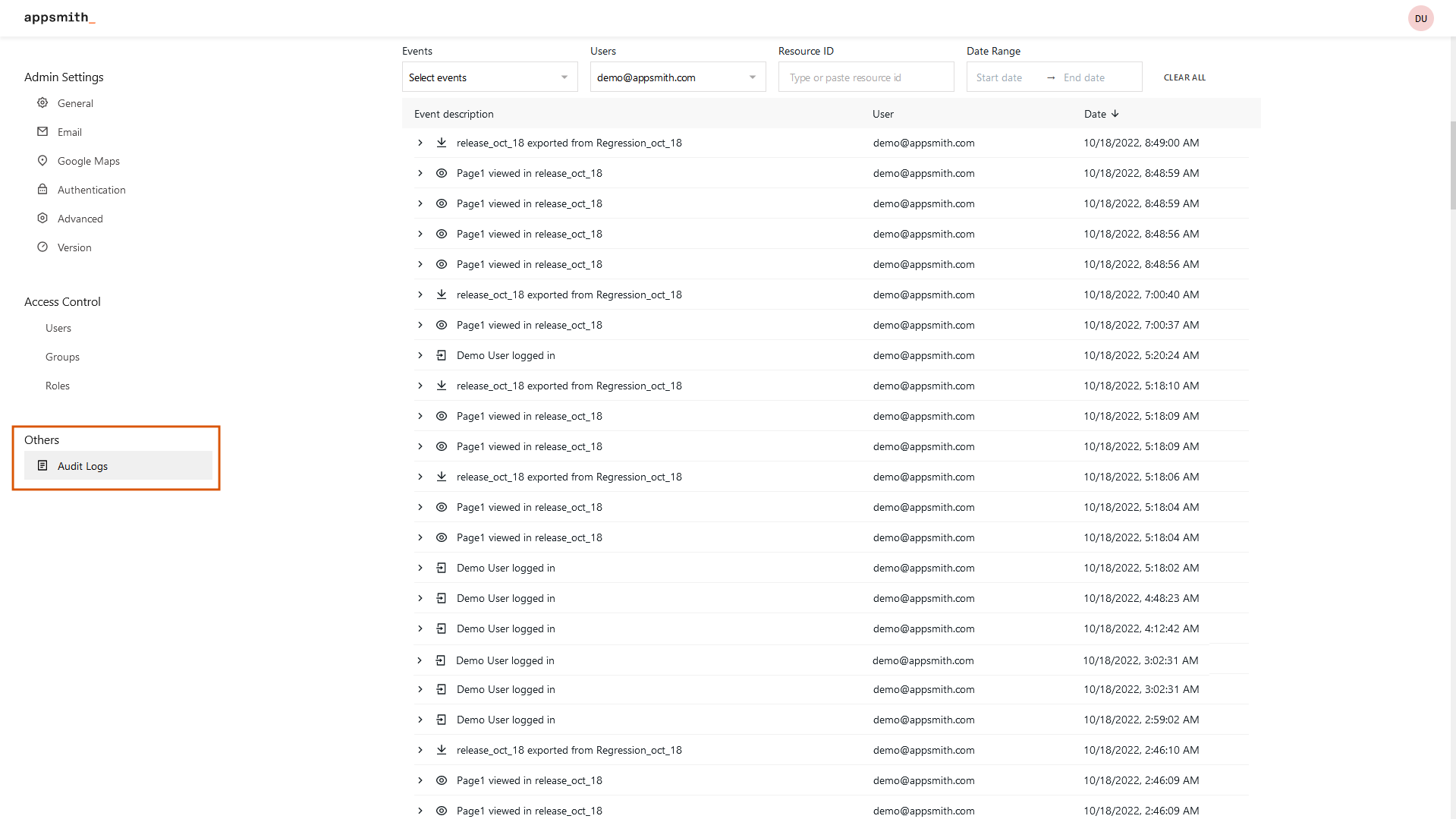
To access the audit logs, on the homepage, go to Admin Settings > Others > Audit logs. Within this tab, you can see a list of events that have been tracked under your organization's account. To view the details of a specific event, click on the event description to expand the event and display a complete set of details in JSON format.
Log contents
Each logged item has several data points that describe that event, including references to related apps, datasources, queries, and workspaces. This data is served in JSON format.
| Data | Description | Details |
|---|---|---|
| event | Each action performed on Appsmith app (edit or view mode) is classified as event | |
| timestamp | Displays the date and time of a logged event. | |
| user | Displays the user who made performed this event | id, email, name |
| resource | The type of resource on which this event was performed (Query, Datasource, etc.) | id, type, name |
| app | Application on which the action is performed. | id, name, git default |
| workspace | Workspace on which the action is performed. | id, name |
| page | Page on which the action is performed. Set for page-scoped events, such as partial imports and exports. | id, name |
| partialResourceCounts | Number of resources included in a partial import or export. Set only on application.partial_exported and application.partial_imported events. | actionCount, actionCollectionCount, datasourceCount, jsLibCount, hasWidgets |
| instanceSettings | Names of the instance settings that changed. Set on instance_setting.updated events. | List of setting names, such as anvilTheme |
| anvilTheme | The organization theme for Responsive apps before and after the change. Set only on instance_setting.updated events that change the theme, including a restore of the previous theme. An empty object means there was no theme. | oldValue, newValue |
| allowCustomCss | Whether builders can add custom CSS to Responsive widgets, before and after the change. Set only on instance_setting.updated events that change this setting. A setting that was never changed counts as true. | oldValue, newValue |
| metadata | Platform details, such as the Appsmith version. | appsmithVersion, createdAt |
An example of a log item is given below:
{
    "event": "datasource.created",
    "timestamp": "2022-06-29T08:36:33.507+00:00",
    "user": {
        "id": "62bc0f11545c4c00b19d5c65",
        "email": "john@appsmith.com",
        "name": "John Doe"
    },
    "resource": {
        "id": "62bc0f11545c4c00b19d5c59",
        "type": "Datasource",
        "name": "Movies"
    },
    "app": {
        "id": "62bc0f11545c4c00b19d5c68",
        "name": "Standup App",
        "git": {
            "branch": "feat/new-ui",
            "default": "master"
        }
    },
    "workspace": {
        "id": "62bc0f11545c4c00b19d5c64",
        "name": "Appsmith Internal Apps"
    },
    "metadata": {
        "appsmithVersion": "1.7.5",
        "createdAt": "2022-06-29T08:36:33.507+00:00"
    }
}
A partial export or import record also includes the page and the number of resources in the file. In partialResourceCounts, actionCount is the number of queries, actionCollectionCount is the number of JS objects, jsLibCount is the number of JS libraries, and hasWidgets is true when the file includes widgets. For example:
{
    "event": "application.partial_exported",
    "resource": {
        "id": "<application-id>",
        "type": "Application",
        "name": "Sample App"
    },
    "workspace": {
        "id": "<workspace-id>",
        "name": "Sample Workspace"
    },
    "page": {
        "id": "<page-id>",
        "name": "Page1"
    },
    "partialResourceCounts": {
        "actionCount": 3,
        "actionCollectionCount": 0,
        "datasourceCount": 1,
        "jsLibCount": 0,
        "hasWidgets": true
    }
}
In the audit log list, these records show as partially exported or partially imported, followed by the page, the workspace, and the resources that were included. Resource types with a count of zero are left out. For example: from Page1 in Sample Workspace · 3 queries, 1 datasource, widgets.
A change to the organization theme for Responsive apps writes one instance_setting.updated record. instanceSettings lists the settings that changed, and anvilTheme holds the theme values before and after the change. If the same save also changes the custom CSS setting, the record lists allowCustomCss too and includes its old and new value. For example:
{
    "event": "instance_setting.updated",
    "instanceSettings": ["anvilTheme"],
    "anvilTheme": {
        "oldValue": {
            "enabled": true,
            "accentColor": "#553DE9",
            "colorMode": "LIGHT"
        },
        "newValue": {
            "enabled": true,
            "accentColor": "#0B8A5F",
            "colorMode": "DARK",
            "anvilFont": "inter"
        }
    }
}
Tracked events
The following table shows the events that appear in Appsmith's audit logs. In any given log record, you can find the event's name on the record's event property.
| Event Name | Description |
|---|---|
| workspace.created | Logged when a new workspace is created. |
| workspace.updated | Logged when the details of an existing workspace are changed. |
| workspace.deleted | Logged when a workspace is deleted. |
| application.created | Logged when a new application is created. |
| application.updated | Logged when a user edits an existing application. |
| application.deleted | Logged when an application is deleted. |
| application.imported | Logged when a new application is created via importing with Git or JSON. |
| application.exported | Logged when an existing application is exported via Git or JSON. |
| application.partial_exported | Logged when a user exports selected resources (widgets, queries, JS objects, datasources, or JS libraries) from a page to a JSON file. A partial export logs this event instead of application.exported. |
| application.partial_imported | Logged when a user imports resources from a partial export JSON file into a page. Only imports from an uploaded file log this event. |
| application.cloned | Logged when a new application is created via cloning. |
| application.forked | Logged when an existing application is forked. |
| application.deployed | Logged when a new version of an application is deployed/published. |
| page.created | Logged when a new page is created. |
| page.viewed | Logged when a user, including any anonymous public users, views a page. |
| page.updated | Logged when a user edits a page. |
| page.deleted | Logged when a page is deleted. |
| datasource.created | Logged when a new datasource is created. Also creates a separate event per environment. |
| datasource.updated | Logged when a user edits an existing datasource's configuration. Creates a separate event per environment. |
| datasource.deleted | Logged when a datasource is deleted. Only logs a single event for all environments. |
| query.created | Logged when a new query is created. |
| query.updated | Logged when a user edits an existing query's configuration. |
| query.deleted | Logged when a query is deleted. |
| query.executed | Logged when an existing query runs. This applies both in Edit and View modes. The execution parameters of the query are included in the log up to a limit of 5 MB. |
| user.logged_in | Logged when a user signs in. |
| user.logged_out | Logged when a user signs out. |
| user.invited | Logged when someone invites another user to the app or workspace. |
| user.signed_up | Logged when a new user logs in for the first time. |
| instance_setting.updated | Logged when a change is made to the Appsmith instance's configuration. A change to the organization theme for Responsive apps, or to whether custom CSS is allowed in Responsive apps, also records the old and new value. |
| role.created | Logged when a new role is created in granular access controls. |
| role.updated | Logged when a role configuration is updated in granular access controls. |
| role.deleted | Logged when a role is deleted from granular access controls. |
| role.assigned_users | Logged when a role is assigned to users. |
| role.unassigned_users | Logged when a role is unassigned from users. |
| role.assigned_groups | Logged when a role is assigned to user groups. |
| role.unassigned_groups | Logged when a role is unassigned from user groups. |
| group.created | Logged when new group is created in granular access controls. |
| group.updated | Logged when a group's information is updated in granular access controls. |
| group.deleted | Logged when a group is deleted from granular access controls. |
| group.invite_users | Logged when users are added to a user group. |
| group.remove_users | Logged when users are removed from a user group. |
| approved_analytics_policy.updated | Logged when an administrator changes the approved analytics switch or the list of approved measurement IDs. |
| approved_analytics_settings.updated | Logged when an app author changes an app's or a page's approved analytics settings. |
Change audit log retention
On self-hosted Appsmith instances, audit logs are retained for 365 days by default. MongoDB enforces this retention with a time-to-live (TTL) index on the auditLog collection's createdAt field. You can change the retention period for this collection in either the built-in MongoDB or an external MongoDB instance.
Reducing retention makes existing audit logs older than the new limit eligible for automatic deletion. For example, changing from 365 days to 30 days makes logs older than 30 days eligible for deletion. Increasing retention or restoring the default does not recover logs already deleted.
Prerequisites
- Access to the MongoDB instance used by Appsmith, with permission to list indexes and run
collModon theauditLogcollection. Appsmith admin access alone does not grant MongoDB permissions. - The MongoDB connection URI and Appsmith database name for your instance.
- A current database backup.
Connect and check the index
-
For a Docker installation with built-in MongoDB, run this command on the Docker host:
docker exec -it appsmith mongosh "<APPSMITH_DB_URL>"Replace
appsmithwith your container name and<APPSMITH_DB_URL>with the actual MongoDB connection URI. The placeholder is not expanded automatically. Keep the URI in quotes and do not share it, because it may contain credentials.For an external MongoDB instance, connect with
mongoshfrom a machine that can reach it, using the connection URI and any TLS or authentication options required by your deployment. -
Run the remaining commands inside
mongosh. Select the database named in your connection URI. The default name isappsmith:use appsmith -
Inspect the audit log indexes:
db.auditLog.getIndexes()Confirm that an index has
key: { createdAt: 1 }and anexpireAfterSecondsvalue. Appsmith names this indexttl_index_audit_log_created_time. If the TTL index is missing, check that you selected the correct database before continuing. These steps modify an existing TTL index.
Set the retention period
Choose the retention period in seconds:
| Retention | expireAfterSeconds |
|---|---|
| 30 days | 2592000 |
| 60 days | 5184000 |
| 90 days | 7776000 |
| 365 days (default) | 31536000 |
Run the following command once, using your chosen value. This example sets retention to 30 days:
db.runCommand({
  collMod: "auditLog",
  index: {
    keyPattern: { createdAt: 1 },
    expireAfterSeconds: 2592000
  }
})
For 60 days, replace 2592000 with 5184000. For 90 days, use 7776000. To restore the default 365-day retention, use 31536000.
Verify the change
Confirm that the command response includes ok: 1, then inspect the index again:
db.auditLog.getIndexes()
The index on createdAt should show your chosen expireAfterSeconds value.
MongoDB deletes expired logs in the background, so deletion may not happen immediately. The retention period is measured from each log's createdAt value, not from when you change the TTL. A shorter period can make many logs eligible for deletion at once and increase database load. Schedule a large reduction during a maintenance window. See MongoDB TTL indexes for details.
This change applies only to the auditLog collection. It does not change retention for other Appsmith data.
Export logs
You can export audit logs from the Appsmith instance to your system as a JSON file. To export logs as a JSON file, go to Admin Settings > Others > Audit logs, click the ⋮ icon at the top right corner and click Download.
Archive audit logs outside Appsmith
Appsmith does not have a built-in audit log archive feature. Changing the TTL deletes expired logs; it does not move them to an archive. If you need to keep logs longer than the database retention period, export them before they expire and manage the archive outside Appsmith.
The external archiving options below are provided for information only. They are not part of the Appsmith product and are not covered by Appsmith support. If you choose one, you are responsible for implementing, securing, monitoring, and maintaining it.
Choose an approach based on your needs:
- Occasional exports: Use the Download option to export audit logs as JSON, then store the files in your archive.
- Scheduled exports on self-hosted instances: Run an external job with MongoDB's
mongoexportto export theauditLogcollection as JSON. Use a date-range filter oncreatedAtto export a defined period. Store the files in object storage, such as Amazon S3, Azure Blob Storage, or Google Cloud Storage. This requires direct MongoDB access and a scheduler that you manage. - Searchable archives: Load exported logs into your organization's log management or security information and event management (SIEM) system. You must build and manage the ingestion process; Appsmith does not provide an automatic archive integration.
For scheduled exports, run the job well before logs reach the TTL limit, monitor failures, and verify each export before relying on it. Use overlapping export periods and deduplicate by _id in your archive to reduce the risk of gaps after retries. Export and verify older logs before shortening retention.
Set access controls, encryption, and a separate retention policy for the archive. Archived files are managed outside Appsmith and are not available in the Audit logs screen. Keep database backups separately: mongoexport creates a data export, not a database backup.