Microsoft SQL Server (MS SQL)
This page explains how to connect your app to a Microsoft SQL Server database, write queries, and work with the results. It also lists how each data type comes back, the differences between Appsmith versions, and known issues with their workarounds.
Supported servers
Appsmith has been tested with:
- SQL Server 2019, 2022 and 2025
- Azure SQL Database
Appsmith connects with TLS 1.2 or later. A server that only offers TLS 1.0 or 1.1, such as an unpatched SQL Server 2014, can't connect.
Appsmith v2.8 and later uses version 13.6 of the Microsoft JDBC Driver for SQL Server. Earlier versions use version 11.2. The differences that affect your apps are listed in Differences between versions.
Connect MS SQL
If you are a cloud user, you must whitelist the IP addresses 18.223.74.85 and 3.131.104.27 of the Appsmith deployment on your database instance before connecting to your database.
Connection parameters
The following section is a reference guide that describes all the parameters to connect to an MS SQL database.
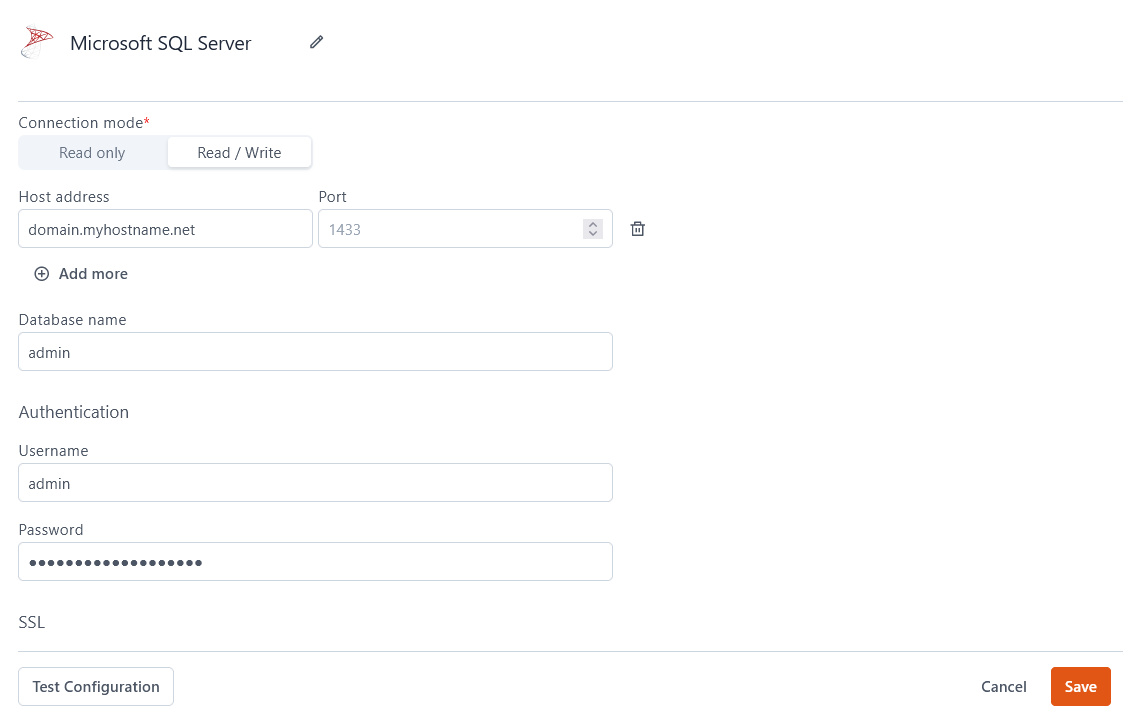
Connection mode
- Read / Write: Gives Appsmith both read and write permissions on the database. This allows you to make changes to your data with all CRUD queries. This is the default.
- Read only: Gives Appsmith read-only permission on the database. Use this mode when you only need to fetch records, not write them.
Host address
myserver.database.windows.net. Enter only the host. Enter the port in the Port field. To connect to a local MS SQL database, see Connect Local Database for directions.Port
1433 by default if you do not specify one.Database name
Username
Password
SSL mode
- Enabled with no verify: The connection is encrypted, but the server's certificate is not checked. This is the default. Use it for Azure SQL Database, which requires encryption.
- Disable: The connection is not encrypted. Use it only on a trusted network.
Test the connection
Click Test configuration to check the details before you save. If the host, port, database or login is wrong, Appsmith shows SQL Server's error message, such as Login failed for user ….
From Appsmith v2.8, a failed test reports in about a second. Earlier versions can take about 30 seconds to report a wrong host, a closed port or a missing database.
Query MS SQL
The following section gives examples of basic CRUD queries for MS SQL.
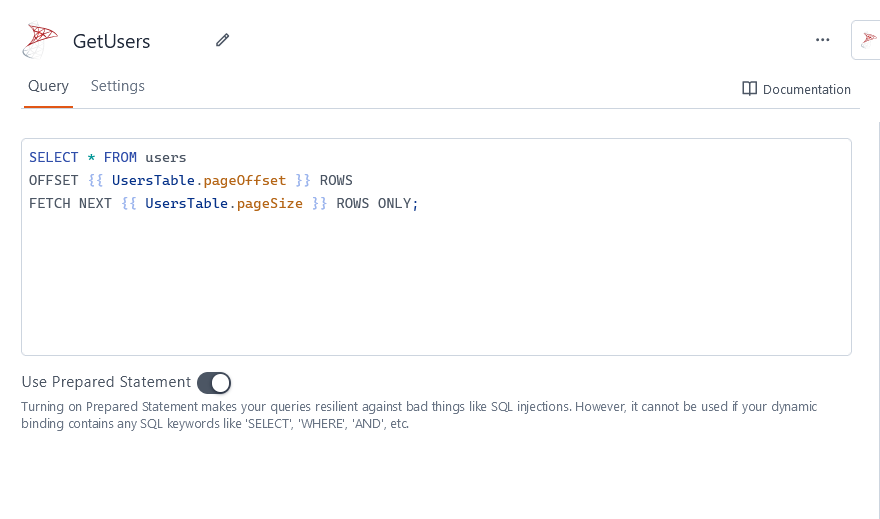
You can query MS SQL databases with T-SQL syntax. To learn more, see Microsoft's documentation on how to Write Transact-SQL statements.
Fetch data
SELECT * FROM users
ORDER BY id
OFFSET {{ UsersTable.pageOffset }} ROWS
FETCH NEXT {{ UsersTable.pageSize }} ROWS ONLY;
In the above example, UsersTable is the name of the Table widget that displays the data with server-side pagination, which controls how much data is queried at once. SQL Server needs an ORDER BY clause before OFFSET … FETCH.
Insert data
INSERT INTO users
  (name, gender, email)
VALUES
(
  {{ NameInput.text }},
  {{ GenderDropdown.selectedOptionValue }},
  {{ EmailInput.text }}
);
In the above example, NameInput, GenderDropdown, and EmailInput are the names of the widgets that capture the user's name, gender, and email.
Insert data and get the new ID
To get the ID of a new row, use an OUTPUT clause. The query returns the inserted row, including identity values, default values and computed columns:
INSERT INTO users (name, email)
OUTPUT inserted.id, inserted.created_at
VALUES ({{ NameInput.text }}, {{ EmailInput.text }});
You can then read the new ID with {{ InsertUser.data[0].id }}.
INSERT …; SELECT SCOPE_IDENTITY(); returns the row count of the INSERT, not the new ID, because a query returns only its first result. Use OUTPUT, or start the query with SET NOCOUNT ON. See Queries with several statements.
Update data
UPDATE users
  SET email = {{ EmailInput.text }}
  WHERE id = {{ UsersTable.selectedRow.id }};
In the above example, EmailInput is the name of the Input widget that captures the email entered by the user. UsersTable is the Table widget where the user selects the row to update.
Delete data
DELETE FROM users WHERE id = {{ UsersTable.selectedRow.id }};
In the above example, UsersTable is the name of the Table widget where the user selects the row to delete.
Filter by a list of values
With prepared statements on, a binding is one value, so IN ({{ … }}) doesn't work with a list. Split a comma-separated string instead:
SELECT * FROM users
WHERE status IN (SELECT value FROM STRING_SPLIT({{ StatusSelect.selectedOptionValues.join(',') }}, ','));
Prepared statements
Prepared statements are turned on by default. Appsmith sends each {{ }} binding to SQL Server as a separate value, not as part of the SQL text. This prevents SQL injection. For more details, see Prepared Statements.
Appsmith sends each bound value with a type that it detects from the value:
| Bound value | Sent as | Example |
|---|---|---|
| Whole number | Integer | 42 |
| Number with a decimal point | Decimal | 19.99 |
true or false | Boolean | true |
null | NULL | null |
Date-time text yyyy-MM-dd HH:mm:ss | Date-time | "2024-02-29 13:45:30" |
Date text yyyy-MM-dd | Date | "2024-02-29" |
Time text HH:mm:ss | Time | "13:45:30" |
| Anything else | Text | "Smith", "00123" |
Text that starts with a zero, such as "00123", stays text and keeps its zeros.
With prepared statements off, Appsmith pastes each value into the SQL text. Then:
- Put quotes around text values yourself:
WHERE name = '{{ NameInput.text }}'. - For
nvarcharcolumns, writeN'{{ NameInput.text }}'. Without theN, characters outside the database's code page, such as 日本 or 😀, are stored as?. - Values are not escaped, so turn prepared statements off only when you need to, such as for a table name that comes from a widget.
How each data type comes back
Query results come back as JSON. This table shows what your app receives for each SQL Server type.
| SQL Server type | Comes back as | Example |
|---|---|---|
bit | true or false | true |
tinyint, smallint, int, bigint | Number | 2147483647 |
decimal, numeric, money, smallmoney, float, real | Number | 12345.6789 |
char, nchar | Text, padded with spaces to the column length | "ab " for char(5) |
varchar, nvarchar, text, ntext, xml | Text | "héllo 日本 😀" |
date | Text | "2024-02-29" |
time | Text with 7 fraction digits | "13:45:30.1234567" |
datetime, datetime2, smalldatetime | Number: milliseconds since 1970-01-01, in the server's time zone | 1709214330123 |
datetimeoffset | ISO 8601 text with the offset. Offset 0 shows as Z. v2.8 and later. | "2024-02-29T13:45:30.1234567+05:30" |
uniqueidentifier | Upper-case text | "6F9619FF-8B86-D011-B42D-00C04FC964FF" |
binary, varbinary, image | Base64 text | "3q2+7w==" for 0xDEADBEEF |
rowversion (also called timestamp) | Hex text. v2.8 and later. | "0x0000000000000FA1" |
sql_variant | The value of the type it holds | 42, "text" |
json (SQL Server 2025, Azure SQL) | Text | "{\"a\":1}" |
vector (SQL Server 2025, Azure SQL) | A JSON array as text | "[1.5000000e+000,2.0000000e+000,3.0000000e+000]" |
hierarchyid, geometry, geography | Base64 bytes, which are not readable | See Spatial and hierarchy types |
Any type, when the value is NULL | null | null |
In versions before v2.8, a query that returns a datetimeoffset or rowversion column fails. See Known issues before v2.8.
Date-times
datetime, datetime2 and smalldatetime come back as a number of milliseconds. To show one in a widget, convert it in JavaScript, for example {{ new Date(Query1.data[0].created_at).toLocaleString() }}.
Keep in mind:
datetime2loses the digits after the millisecond.- A
datetime2value before the year 1582 comes back shifted, because of an older calendar.
To get the full value as text, convert it in the query:
SELECT id, CONVERT(varchar(33), created_at, 126) AS created_at FROM orders;
This returns text such as "2024-02-29T13:45:30.1234567".
Large numbers
The server sends every number exactly, but JavaScript rounds a whole number above 9,007,199,254,740,991. This affects large bigint values and money or decimal values with many digits. When every digit matters:
- Return the value as text:
SELECT CAST(id AS varchar(20)) AS id FROM orders. - Bind it back as text:
WHERE id = {{ String(OrdersTable.selectedRow.id) }}.
Decimals in exponent form
A decimal or numeric value that ends in zeros, such as 10.00, or a SCOPE_IDENTITY() result of 150, can show in exponent form in the RAW response view, as 1E+1 or 1.5E+2. These are still numbers. JavaScript reads them as 10 and 150, and widgets show them normally. To return a fixed number of decimal places as text, use FORMAT(price, 'N2') or CAST(price AS varchar(20)).
Spatial and hierarchy types
geometry, geography and hierarchyid come back as unreadable bytes. Convert them to text in the query:
SELECT id,
       location.STAsText() AS location,   -- geometry or geography, such as "POINT (1 2)"
       node.ToString() AS node            -- hierarchyid, such as "/1/2/"
FROM places;
To write one from a binding, convert from text, such as geography::STGeomFromText({{ WktInput.text }}, 4326).
rowversion
From v2.8, a rowversion column comes back as hex text, such as "0x0000000000000FA1". To use it in a WHERE clause, for example to check that a row hasn't changed since it was read, convert it back to binary:
UPDATE products
SET price = {{ PriceInput.text }}
WHERE id = {{ ProductsTable.selectedRow.id }}
  AND rv = CONVERT(binary(8), {{ ProductsTable.selectedRow.rv }}, 1);
Without CONVERT, the comparison never matches, and the UPDATE changes 0 rows without an error.
Time values
A bound time, such as "13:45:30", is sent as a time value. From v2.8:
WHERE start_time = {{ TimeInput.text }}works on atimecolumn.- A time bound into a
datetimecolumn gets the date 1900-01-01. - A time bound into a
varcharcolumn is stored as SQL Server's time text, such as13:45:30.0000000.
To store a time exactly as typed in a text column, convert it in the query, such as CAST({{ TimeInput.text }} AS varchar(8)), or turn off prepared statements for that query.
Queries with several statements
You can put several statements in one query, separated by semicolons. Keep these rules in mind.
The response is the first statement's result. If the first statement is a SELECT, you get its rows. If it is an INSERT, UPDATE or DELETE, you get its row count, and later SELECT statements are not returned. To return rows after a write:
- start the query with
SET NOCOUNT ON, so the write produces no count, or - use an
OUTPUTclause on the write.
affectedRows is the first statement's count. For a table with a trigger, the count can include the rows that the trigger changed:
| Prepared statements on | Prepared statements off | |
|---|---|---|
| v2.8 and later | The trigger's count | The INSERT's own count |
| Before v2.8 | The trigger's count | The trigger's count |
To avoid this, add SET NOCOUNT ON at the start of each trigger.
An error in any statement fails the query (v2.8 and later). The error message starts with A statement in this query failed. Other statements in the query may already have run., followed by SQL Server's message. Statements that ran before the error are not undone. When statements must succeed or fail together, use a transaction:
SET XACT_ABORT ON;
BEGIN TRAN;
  UPDATE accounts SET balance = balance - {{ Amount.text }} WHERE id = {{ FromAccount.selectedOptionValue }};
  UPDATE accounts SET balance = balance + {{ Amount.text }} WHERE id = {{ ToAccount.selectedOptionValue }};
COMMIT;
With XACT_ABORT ON, an error undoes the whole transaction.
In versions before v2.8, an error after the first statement is not reported. See Known issues before v2.8.
SET options stay on the connection. Appsmith reuses database connections between queries. If a query changes a session option, such as SET NOCOUNT ON or SET LANGUAGE, later queries that use the same connection see the change. Set the option back at the end of the query:
SET NOCOUNT ON;
INSERT INTO users (name) VALUES ({{ NameInput.text }});
SELECT SCOPE_IDENTITY() AS id;
SET NOCOUNT OFF;
Stored procedures
Run a stored procedure with EXEC:
EXEC dbo.get_orders_for_customer @customer_id = {{ CustomersTable.selectedRow.id }};
The response is the procedure's first result set. To read an output parameter, select it at the end:
DECLARE @total int;
EXEC dbo.count_orders @customer_id = {{ CustomersTable.selectedRow.id }}, @total = @total OUTPUT;
SELECT @total AS total;
If the procedure doesn't start with SET NOCOUNT ON, the first result can be a row count instead of the rows you want. Add SET NOCOUNT ON to the procedure, or at the start of the query.
Differences between versions
Appsmith v2.8 changed how some queries behave. If your apps were built on an earlier version, check this table before you upgrade.
| Behaviour | Before v2.8 | v2.8 and later |
|---|---|---|
datetimeoffset column in the result | The query fails | ISO 8601 text with the offset |
rowversion column in the result | The query fails with The conversion from timestamp to DATE is unsupported | Hex text, such as "0x0000000000000FA1" |
sql_variant holding a datetimeoffset | The query fails | ISO 8601 text |
datetimeoffset on 0001-01-01 | Comes back 2 days early | Correct |
| Error in a later statement of a multi-statement query | Not reported. The query shows success with the first statement's count | The query fails and shows the error |
Bound time compared with a time column | Fails with The data types time and datetime are incompatible | Works |
Bound time into a datetime column | Gets the date 1970-01-01 | Gets the date 1900-01-01 |
Time-like text bound into a varchar column | Stored as Jan 1 1970 1:45PM | Stored as 13:45:30.0000000 |
affectedRows for a table with a trigger, prepared statements off | The trigger's count | The INSERT's own count |
| Test configuration with a wrong host, port or database | Reports after about 30 seconds | Reports after about 1 second |
| Message when a running query's connection is closed by the server | Connection object is invalid | SQL Server's message, such as … session is in the kill state |
Everything else, including the format of every other data type and the error messages for SQL errors, is the same in both versions.
Known issues before v2.8
If you can't upgrade yet, use these workarounds.
A query that returns a datetimeoffset column fails
Convert the column to text in the query:
SELECT id, CAST(updated_at AS nvarchar(34)) AS updated_at FROM events;
This returns text such as "2024-02-29 13:45:30.1234567 +05:30". Do the same for a sql_variant column that can hold a datetimeoffset.
A query that returns a rowversion column fails
The error is The conversion from timestamp to DATE is unsupported. Convert the column to hex text:
SELECT id, name, CONVERT(varchar(18), rv, 1) AS rv FROM products;
SELECT * on a table with a rowversion column fails, so list the columns you need.
Filtering a time column with a bound time fails
The error is The data types time and datetime are incompatible. Convert the bound value in the query:
SELECT * FROM shifts WHERE start_time = CAST({{ TimeInput.text }} AS time);
Errors after the first statement are not reported
In a query with several statements, an error in the second or a later statement is not shown. The query reports success, and the statements before the error stay committed. To protect your data, wrap the statements in a transaction with SET XACT_ABORT ON, as shown in Queries with several statements. Then an error undoes all of them. Check the data afterwards, because the error itself may still not be shown.
Troubleshooting
| Error or symptom | Cause | What to do |
|---|---|---|
Login failed for user … | Wrong user name or password, or the login can't open the database | Check the login in SQL Server, and that it has access to the database |
| Test configuration times out, or reports that the host can't be reached | Wrong host or port, a firewall, or the Appsmith IP addresses aren't allowed | Check the host and port. On Appsmith Cloud, allow the IP addresses listed in Connect MS SQL |
Arithmetic overflow … | The value doesn't fit the column, such as 12345.678 into decimal(5,2) | Check the value or widen the column |
Conversion failed … | The value can't become the column's type, such as 'yes' into bit | Send a value of the right type, such as true |
Prepared statements are currently enabled, which may be causing the query error | Appsmith shows this hint for any error with prepared statements on. It is often not the cause | Read SQL Server's message above the hint first |
| The new ID is missing, and the response shows a row count | A query returns only its first result | Use OUTPUT inserted.id, or start the query with SET NOCOUNT ON |
An UPDATE with a rowversion check changes 0 rows | The hex text isn't converted back to binary | Use CONVERT(binary(8), {{ … }}, 1) |
Unicode text is stored as ? | Prepared statements are off and the value has no N prefix | Write N'{{ … }}', or turn prepared statements on |
| A large ID has different last digits in the app | JavaScript rounds numbers above 9,007,199,254,740,991 | Return the value as text with CAST(… AS varchar(20)) |
| A query that used to return rows now returns nothing, or no row count | An earlier query ran SET NOCOUNT ON and didn't set it back, and the option stayed on the pooled connection | Set options back at the end of each query, such as SET NOCOUNT OFF |
A statement in this query failed. … (v2.8 and later) | One statement in a multi-statement query failed | Read the SQL Server message after it. Statements before it may have run |
For other problems, see the Datasource troubleshooting guide, or contact the support team with the chat widget at the bottom right of this page.
See also
- Prepared Statements - Learn how bindings are sent to the database and when to turn prepared statements off.
- Display and Lookup Data in Table - Learn how to display query results in a Table and let users look up data.
- Search and Filter Table Data - Add search and filters to Tables for easier data navigation.
- Update Data - Update data in your app with the Form widget.
- Insert Data - Insert new records into your database with the Form widget.